SCPH-1000 (Japan)
The very first PlayStation BIOS, designed for Japanese consoles. Required if you want to play Japan-exclusive titles or experience the original launch hardware performance.
Download Japan BIOSSafe, fast, and verified PlayStation 1 BIOS for all emulators.
Free • Multi-region • Works on PC & Android
If you want to enjoy PlayStation 1 classics smoothly on your PC, Android, or emulator, the first step is installing the correct BIOS file. Our website provides safe, verified, and easy-to-use BIOS files for ePSXe, RetroArch, DuckStation, and other PS1 emulators.
👉 With our collection, you can:
Download PS1 BIOS for Windows, Linux, and Android.
Access all-region BIOS packs (USA, Europe, Japan, Asia).
Follow step-by-step guides for setup and error fixes.
⚡ Start now and make your emulator run like a real PlayStation 1 console!
The PS1 BIOS (Basic Input/Output System) is the essential firmware that allows PlayStation 1 consoles and emulators to initialize hardware and run games. It contains the low-level instructions that let the system recognize and interact with game discs, memory cards, and controllers. Without the correct BIOS, PS1 games cannot function properly on emulators or even original hardware.
Each PlayStation 1 region (Japan, USA, Europe, etc.) has its own specific BIOS version. This ensures that games designed for that region follow the correct coding standards, refresh rates, and display settings. Using the wrong BIOS can cause errors, compatibility issues, or prevent the game from loading altogether.
For emulation purposes, downloading a verified PS1 BIOS is crucial. It allows emulators like ePSXe, RetroArch, or DuckStation to replicate the original console’s behavior accurately, providing smooth gameplay, proper sound, and full functionality. A proper BIOS is therefore the backbone of a reliable PlayStation 1 emulation experience.
Every PlayStation 1 region comes with its own BIOS version. To ensure your games run properly, you must use the BIOS that matches the region of your console or game release. Here are the main ones:
The very first PlayStation BIOS, designed for Japanese consoles. Required if you want to play Japan-exclusive titles or experience the original launch hardware performance.
Download Japan BIOSThis BIOS was bundled with North American PlayStation consoles. It is essential for running USA game discs and ensuring smooth compatibility with emulators like ePSXe and RetroArch.
Download USA BIOSThe standard BIOS for European (PAL) PlayStation systems. If you are playing PAL-region games from Europe or Australia, this BIOS ensures correct video and gameplay settings.
Download Europe BIOSThis BIOS was released for consoles across Asia outside of Japan. Perfect for region-specific games that may not function properly with USA or Europe BIOS versions.
Download Asia BIOSThe PS1 BIOS is essential for running PlayStation 1 games smoothly across different emulators. With the correct BIOS file, you can unlock full compatibility, enjoy stable gameplay, and experience accurate graphics and sound just like on the original console.

ePSXe is one of the most popular PS1 emulators available on Windows, Linux, and Android. It requires the proper BIOS file to function correctly, ensuring high game compatibility and reliable performance. With BIOS, ePSXe can deliver enhanced visuals and better save features.

Mednafen is well known for its accuracy-focused emulation. While not as user-friendly as other emulators, it delivers an authentic experience when paired with the correct BIOS. It is highly recommended for players who prefer precise and faithful gameplay.

DuckStation is a modern PS1 emulator praised for its speed and stability. The BIOS file improves compatibility and eliminates regional lockouts, making it a great choice for smooth and optimized emulation.

RetroArch uses cores like Beetle PSX to emulate PlayStation 1. To achieve accurate emulation, RetroArch needs the PS1 BIOS file. This makes it a perfect option for players who want to run PS1 games on multiple devices with a unified interface.
Setting up the PS1 BIOS is essential to run PlayStation 1 games smoothly on your favorite emulator. Without it, many games won’t load properly or might have glitches. Below, we’ve created a complete step-by-step guide for the most popular emulators: ePSXe, RetroArch, and DuckStation.
The ePSXe emulator is one of the most reliable PS1 emulators, available on both Android and PC. Follow the instructions for your device:
Download the BIOS File
Head to the download section on our site and get the All-in-One PS1 BIOS Pack.
Extract the BIOS File
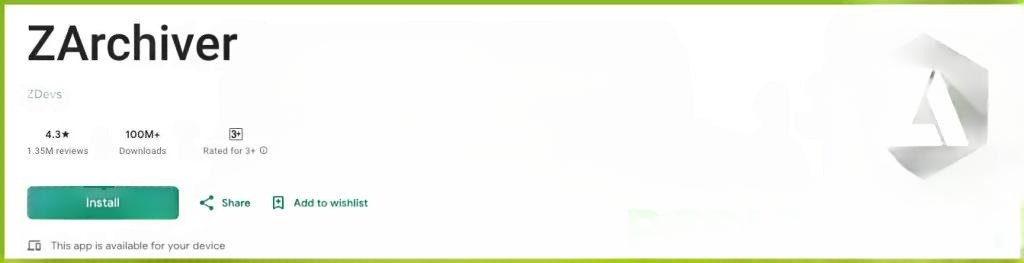
Use an app like ZArchiver to unzip the downloaded file on your Android device.
Install ePSXe
Download ePSXe from the Google Play Store or use the link provided on our site.
Load the BIOS in ePSXe
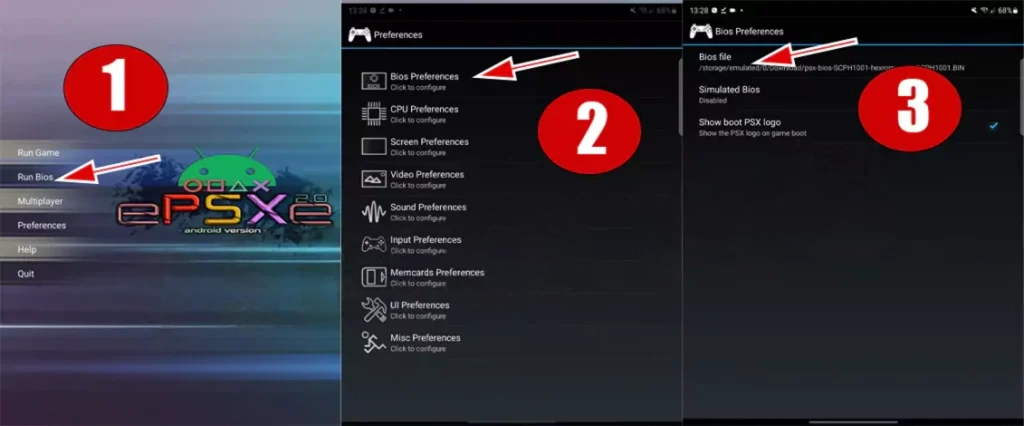
Launch the emulator → Go to Preferences > BIOS Preferences > BIOS File → Select the BIOS file you extracted.
Run Games
Once BIOS is configured, go back to the home screen → Tap Run Games → The emulator will scan your device for PS1 ROMs and start playing.
Download the BIOS File
Get the All-in-One PS1 BIOS Pack from our site.
Install ePSXe
Download ePSXe for Windows/Linux and complete the installation.
Configure BIOS
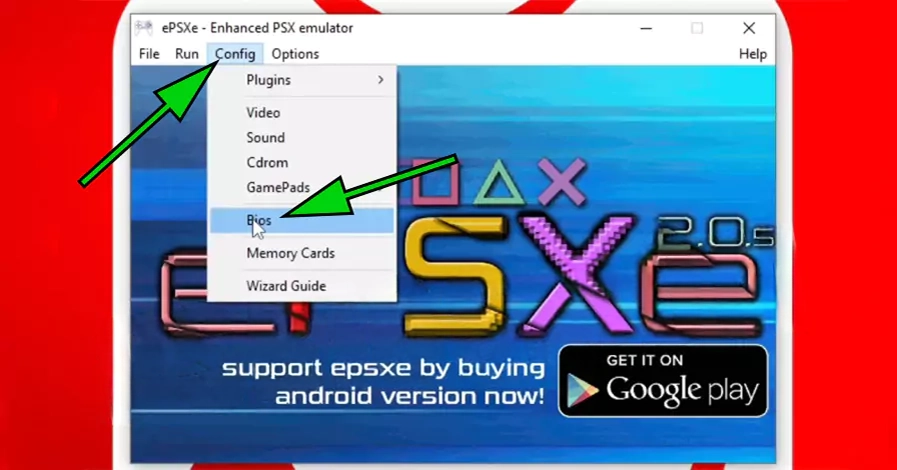
Open ePSXe → Go to Config > BIOS → Locate the BIOS file on your PC → Load it.
Run Games
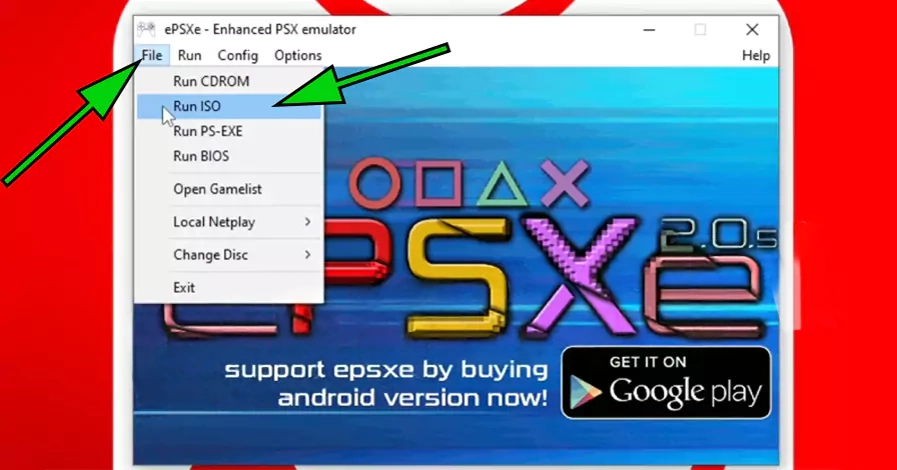
Go to File > Run ISO, select your game file, and start playing.
RetroArch is a multi-platform emulator hub available on Android, iOS, and PC. Here’s how to set it up:
Install RetroArch
Download it from the Google Play Store (Android) or App Store (iOS).
Download the BIOS File
Grab the All-in-One PS1 BIOS Pack from our site.
Set BIOS Directory
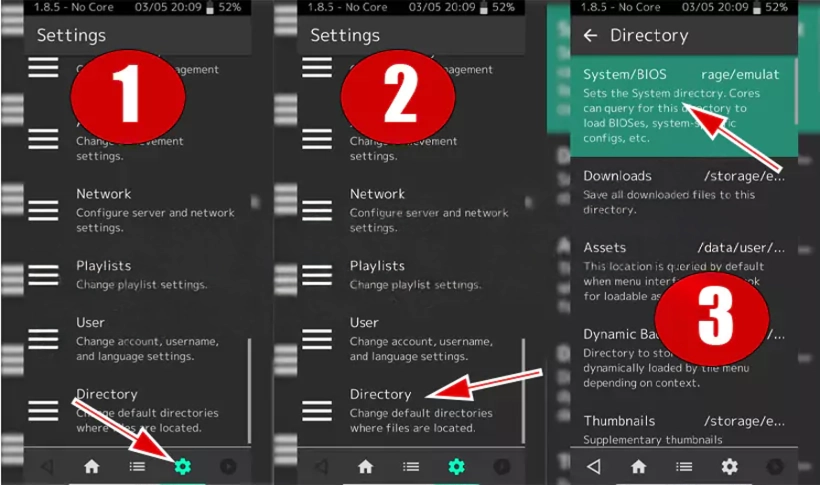
Open RetroArch → Go to Settings > Directory > System/BIOS → Select the folder where you placed the BIOS files.
Load PS1 Core
Go to Main Menu > Load Core → Choose Sony – PlayStation (Beetle PSX HW) → If missing, use Online Updater to install it.
Verify BIOS & Play Games
RetroArch will auto-detect BIOS.
Go to Load Content, select your PS1 game file, and enjoy.
Download RetroArch
Visit the official RetroArch website and install it for Windows/Mac/Linux.
Download BIOS File
Get the BIOS pack and store it in a safe folder on your computer.
Set BIOS Directory
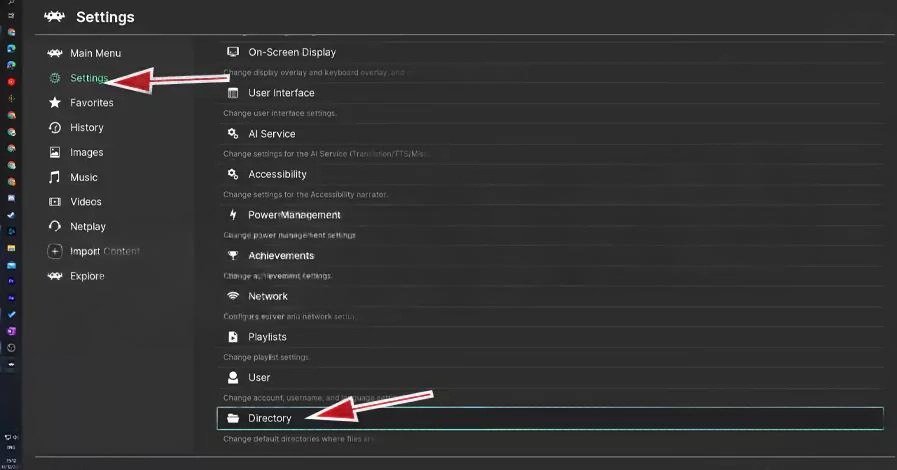
Open RetroArch → Settings > Directory > System/BIOS Directory → Point it to your BIOS folder.
Install PS1 Core
Go to Load Core → Select Sony – PlayStation (Beetle PSX HW) → Install via Online Updater if needed.
Load Games
RetroArch automatically uses the BIOS → Use Load Content to start your PS1 games.
DuckStation is a modern PS1 emulator that’s simple and stable, available for both Android and PC.
Install DuckStation
Download from the Google Play Store.
Download & Extract BIOS
Get the BIOS pack → Use ZArchiver to extract it.
Configure BIOS in DuckStation
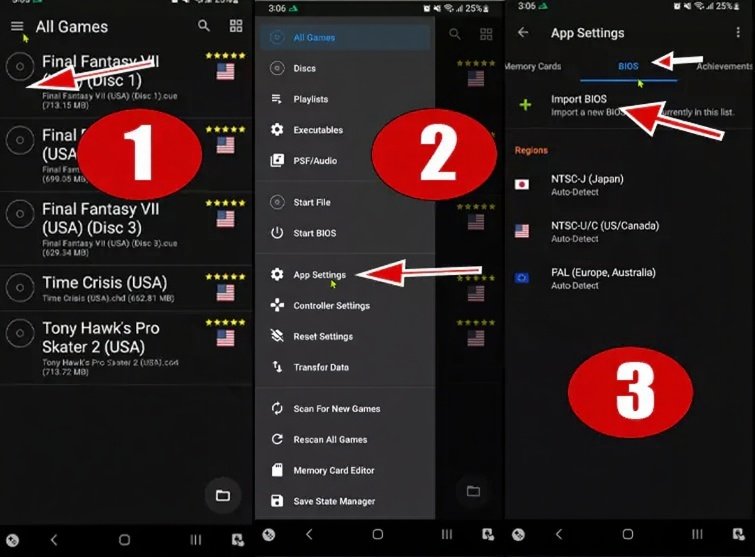
Open the emulator → Go to Settings > App Settings > BIOS > Import BIOS → Select the folder with your BIOS files → Tap Use This Folder.

Run Games
On the home screen → Tap the + (Plus) icon → Add your PS1 game ISO → Load and play.
Download DuckStation
Install it from the official DuckStation website.
Get BIOS File
Download the BIOS pack from our site.
Set BIOS Path
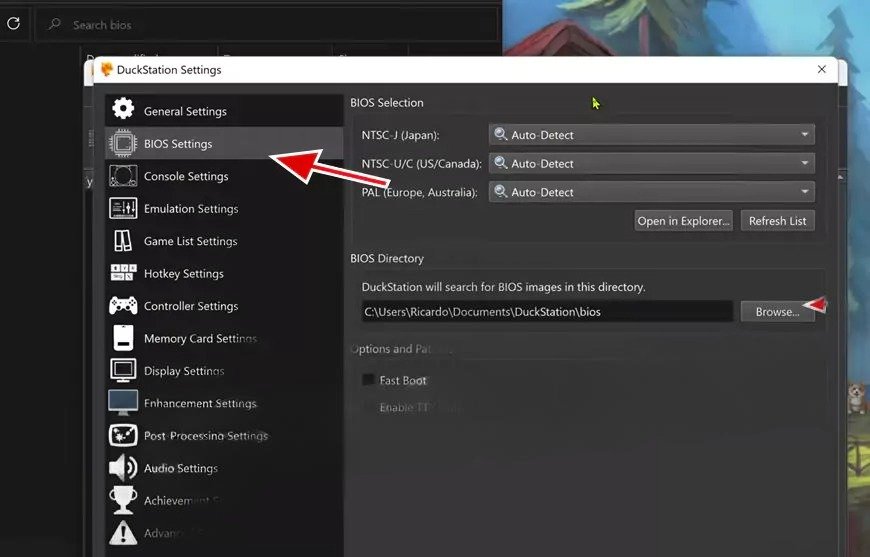
Open DuckStation → Go to Settings > BIOS Settings → Choose the folder containing your BIOS file.
Load Games
DuckStation will auto-detect the BIOS → Use File > Open Disc Image to play your games.
You should only use a BIOS that you’ve dumped from your own PlayStation 1 console. Downloading it from the internet may violate copyright laws.
Yes. With an emulator such as ePSXe or RetroArch, you can run PS1 games, but you’ll need a proper BIOS file extracted from a real PS1 system.
Popular options include ePSXe, RetroArch, and DuckStation. Each offers great compatibility, performance, and customization features.
No. Since the PlayStation 1 is an older console, most modern computers—even lower-end ones—can run PS1 emulators smoothly.
A BIOS file contains the firmware of the PlayStation 1. It’s required by emulators to mimic the real console environment and run games accurately.
Different regions (NTSC-U, PAL, NTSC-J) have their own BIOS versions. For the best compatibility, use the BIOS that matches your game’s region.
Yes, if you download them from official sources. Stick to trusted websites to avoid malware or corrupted files.
Yes. Many emulators allow local multiplayer using multiple controllers, and some even support netplay for online multiplayer.
While you can use a keyboard, a controller is highly recommended. USB and Bluetooth controllers provide the best experience, closely matching the original PS1 layout.
The safest way is to dump the BIOS from your own PlayStation 1 console. Avoid downloading BIOS files from unverified sources to stay legal and secure.
Installing the PS1 BIOS is a one-time setup that unlocks full compatibility, smooth performance, and accurate emulation across all major PlayStation emulators. Whether you prefer ePSXe, RetroArch, or DuckStation, following the steps above will have you playing your favorite PS1 classics in no time.